How to Build Discord Profile Widgets
writing
A while back Discord added a feature called Widgets, initially only accessible to specific games like Wuthering Waves and Marvel Rivals, which let them display live stats directly on a user's profile. More recently Discord shipped an experiment called widgets v2 that opens this up to any Discord application. The method to create these has stayed fairly obscure, partly because it's genuinely annoying to set up, but now that people are charging money for what amounts to a documented API it seemed worth writing a proper guide. This is not the definitive way to build these. It's one way that works, and you will need some programming background and comfort with your browser's developer tools to follow along.
01Setting Up Your Application
Start at the Discord Developer Portal and create a new application. Once created, navigate to Games then Social SDK in the sidebar. Fill out the short form to get access to the Social SDK, which is the umbrella feature that widgets v2 falls under. You do not need an actual game for this, and you get access immediately after submitting.
The widget config editor is hidden behind an experiment flag that is not exposed by default, even on the Developer Portal. Open the developer tools console on the Developer Portal and run the following to unlock it:
let _mods = webpackChunkdiscord_developers.push([[Symbol()],{},r=>r.c]);
webpackChunkdiscord_developers.pop();

let findByProps = (...props) => {
    for (let m of Object.values(_mods)) {
        try {
            if (!m.exports || m.exports === window) continue;
            if (props.every((x) => m.exports?.[x])) return m.exports;
            for (let ex in m.exports) {
                if (props.every((x) => m.exports?.[ex]?.[x]) && m.exports[ex][Symbol.toStringTag] !== 'IntlMessagesProxy')
                    return m.exports[ex];
            }
        } catch {}
    }
}

findByProps("getAll").getAll().find(e=>e.getName() === "ApexExperimentStore")
  .createOverride("2026-03-widget-config-editor", 1)
After running this, click the back arrow at the top left and reopen your application. Do not refresh the page as the override lives in memory only. You should now see a Widget entry under the Games section in the sidebar.
02Building the Widget
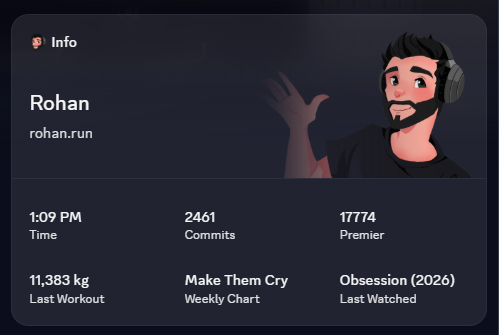
Clicking Create Widget drops you into the widget editor. You need to create a Widget Top, a Widget Bottom, and an Add Widget Preview section, with all required fields filled before you can publish.
Fields can be one of two types. Custom or Asset fields are static, meaning every user who adds your widget sees the exact same value. User Data fields are dynamic and change per user. If you want the widget title to show each person's username, set the field type to Text, the Value Type to User Data, and the Data Field to whatever key you plan to send (e.g. username). User Data fields also need a fallback value shown while your application has not sent any data for that user yet.
Once the layout looks right, open the Sample Data tab at the bottom of the editor. Add every User Data field with realistic demo values so you can see what a fully populated widget looks like. This is also how you catch alignment and truncation issues before publishing.
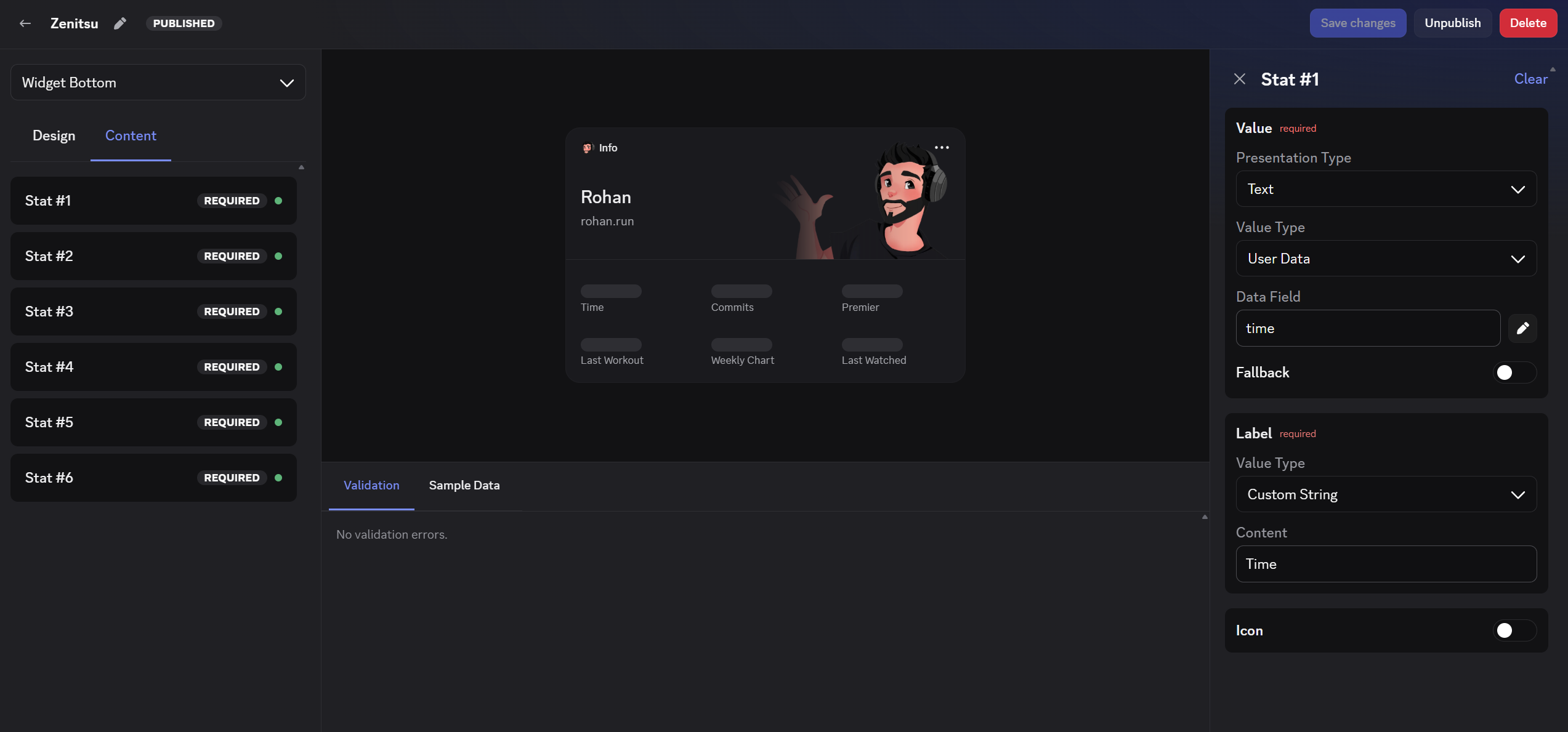
When everything looks correct, click Generate JSON in the top right of the Sample Data window. Save that JSON somewhere, you will need it later. Close the modal, then hit Save Changes and Publish at the top right of the editor.
03OAuth Setup
For the widget to display user-specific data, users need to grant your application permission to update their widget. Head to the OAuth2 page under your application and add a redirect URI. You can point it at your own website or, for testing purposes, Discord's homepage works fine.
Scroll down to the OAuth2 URL Generator. Check the scopes openid and sdk.social_layer, select your redirect URI, and copy the generated URL. Then change response_type=code to response_type=token in the URL and open it once to confirm there are no scope errors. If you get an invalid scopes error, the Social SDK form from step one was likely not submitted.
04Application Identities (Personal Use Only)
If you are building this just for yourself rather than as a service for other people, this step is required. Skipping it causes the widget to show "Your game stats are still syncing. Keep playing!" instead of your actual data, and the widget will not be visible to anyone else.
First confirm you have authenticated through your application. Go to Authorized Apps in Discord settings and find your application. It should have a specific set of permissions including managing your friends list, updating your activity status, and accessing your profile. If those are missing, go through the OAuth flow again.
Then go to the Bot page in the Developer Portal and reset the token. Copy it. Take the sample JSON from the widget editor, add a username field at the root with any value, then stringify it in the browser console:
JSON.stringify({
    "username": "your_username",
    "data": {
        "dynamic": [
            {
                "type": 1,
                "name": "display_name",
                "value": "Your Name"
            }
        ]
    }
})
Copy the resulting string. Then in PowerShell, run the following, replacing the placeholders with your application ID, your Discord user ID, your bot token, and the JSON string from above:
Invoke-RestMethod `
  -Uri https://discord.com/api/v9/applications/{appId}/users/{userId}/identities/0/profile `
  -Method PATCH `
  -Headers @{
    "Content-Type"="application/json";
    "Authorization"="Bot {botToken}";
    "User-Agent"="DiscordBot (https://github.com/discord/discord-api-docs, 1.0.0)"
  } `
  -Body '{jsonString}'
If that completes without errors you can skip the next section and go straight to adding the widget to your profile.
05Widget Management With a Bot
If you are building this as a service for other people, you need a bot to handle the data sync. The pattern that works well is a user-installable bot with two slash commands: one to set up and link a user's account, and one to push fresh data to Discord on demand.
The setup command walks the user through authorizing your application with the sdk.social_layer scope and then verifying their account with whatever external service your widget represents. The refresh command is what actually sends data to Discord. The endpoint for that is:
PATCH https://discord.com/api/v9/applications/{appId}/users/{userId}/identities/0/profileThe identity ID (the 0 at the end of that URL) can technically be any unique value but setting it to 0 works consistently. The request body structure mirrors the JSON from the Sample Data tab with the real values substituted in for each user. The three field types are: type 1 for strings, type 2 for numbers, type 3 for images with a URL. For example:
{
  "username": "character_name",
  "data": {
    "dynamic": [
      { "type": 1, "name": "display_name", "value": "Character Name" },
      { "type": 1, "name": "server",       "value": "@Gilgamesh" },
      { "type": 2, "name": "hours_played", "value": 1240 },
      { "type": 3, "name": "avatar",       "value": { "url": "https://..." } }
    ]
  }
}
Field names match whatever Data Field values you set in the widget editor. If the user has authorized your app with the right scope, the PATCH succeeds and the widget updates immediately.
06Adding the Widget to Your Profile
Adding a widget to your profile currently has to be done through the API directly as Discord has not exposed it in the normal UI yet. The Discord Previews community server has a thread with ready-to-run browser snippets that handle this for you, covering both directly pinning the widget to your profile and adding it to the Add Widget menu at the top right of your profile page. You will also want to make sure the experiment 2026-03-application-widget-v2-renderer is set to Variant 1 on your account.
Once that is done and your bot has pushed at least one data update, the widget shows up on your profile.
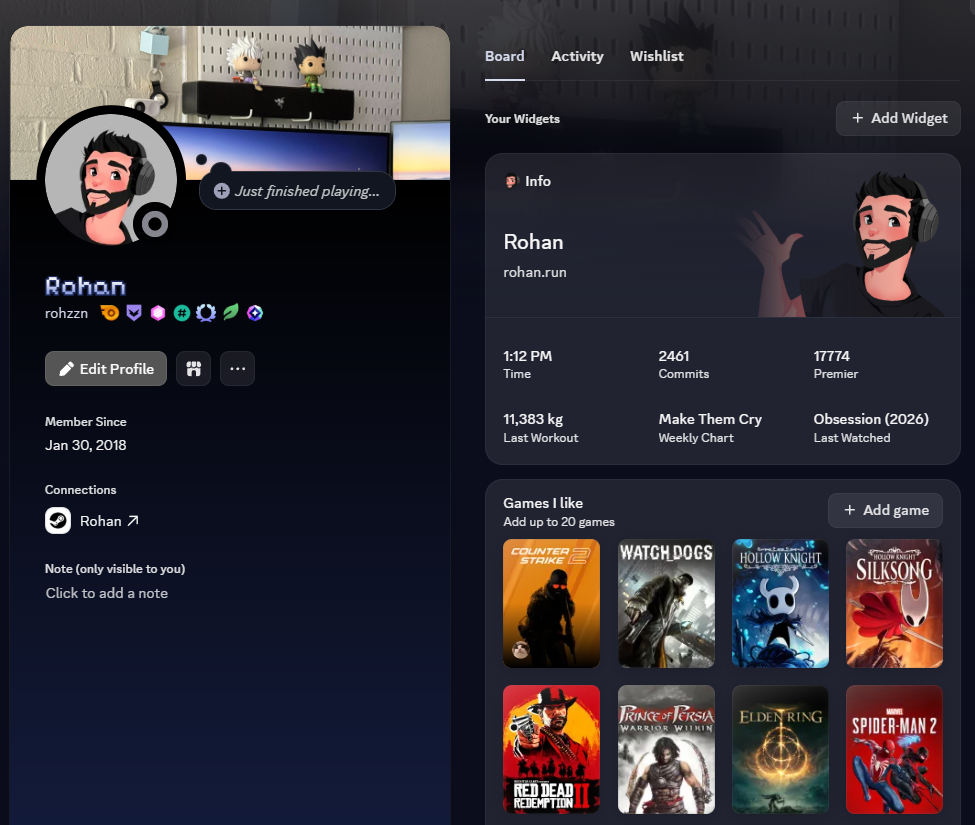
The whole setup is more involved than it looks. You are touching the Developer Portal, OAuth2, bot tokens, undocumented experiment overrides, and a manual API call just to get a working baseline. But once it is running the result is genuinely useful, especially if you are building something that surfaces data people actually care about.
Use this responsibly. The feature is still experimental and Discord can pull it at any time, especially if it gets abused. Impersonating staff or spamming nonsense will get it taken away for everyone. If you do build something interesting with this, build it around something you actually care about, a game you play, a service you use, something with data worth displaying.